> For the complete documentation index, see [llms.txt](https://docs.reportpundit.com/llms.txt). Markdown versions of documentation pages are available by appending `.md` to page URLs; this page is available as [Markdown](https://docs.reportpundit.com/knowledge-base/schedules/how-to-schedule-in-report-pundit.md).
# How to Schedule in Report Pundit
Report Pundit’s scheduling feature lets you automatically generate and deliver reports in multiple file formats. Whether you want to view reports directly, share them with your team.
### Steps to Schedule a Report
* **Open the Report**
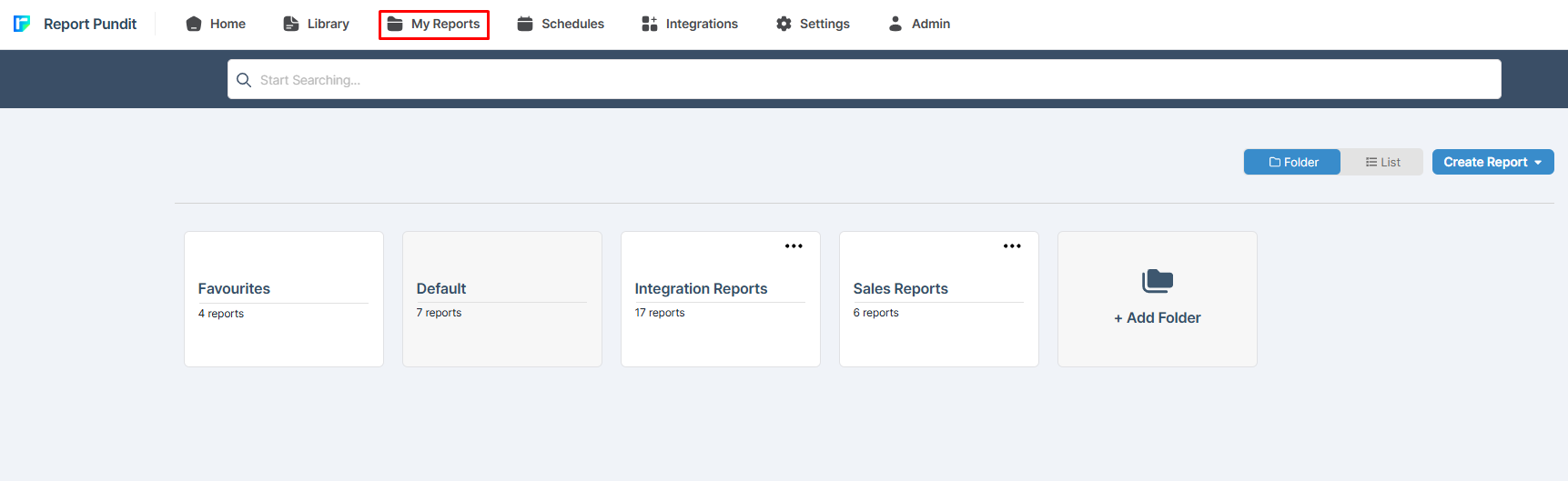
* Go to **My Reports** from the navigation bar.
* Open the folder where your report is saved.
* Click on the report you want to schedule.
* **Access the Schedule Option**
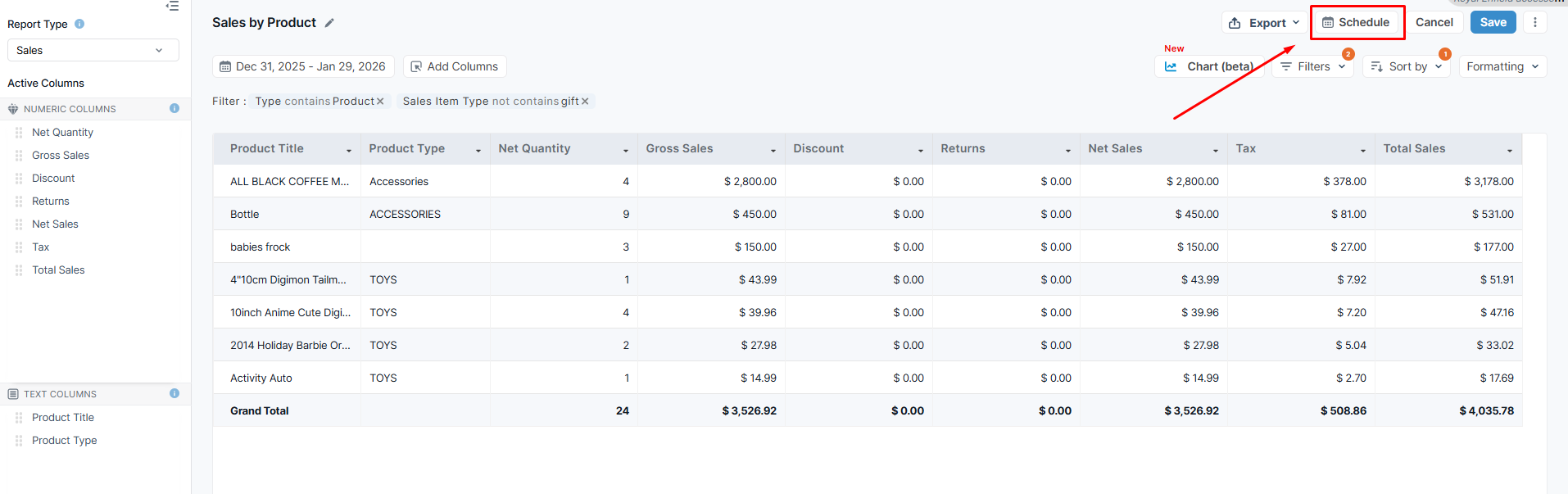
* On the report page, click the **Schedule** button in the top-right corner.
**Alternatively:**
* In the **My Reports** section, locate your report.
* Click the **Auto-Schedule** icon in the **Actions** column.
* This will take you directly to the scheduling settings.
* **Choose the Schedule Type**
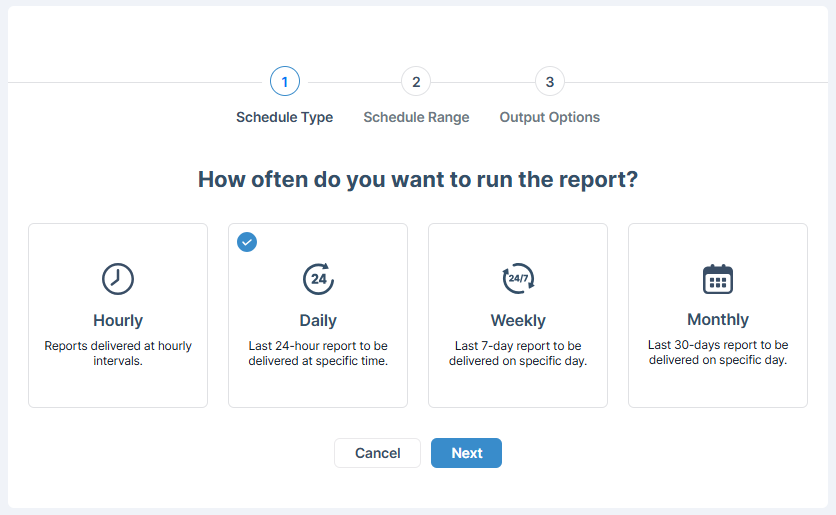
* Select how often you want the report to run:
* Hourly
* Daily
* Weekly
* Monthly
* **Set the Schedule Range**
* Define when the schedule should start and (optionally) end.
* **Customize Delivery (Optional)**
* Use **Advanced Options** to fine-tune delivery frequency or timing.
* **Select an Output Format**
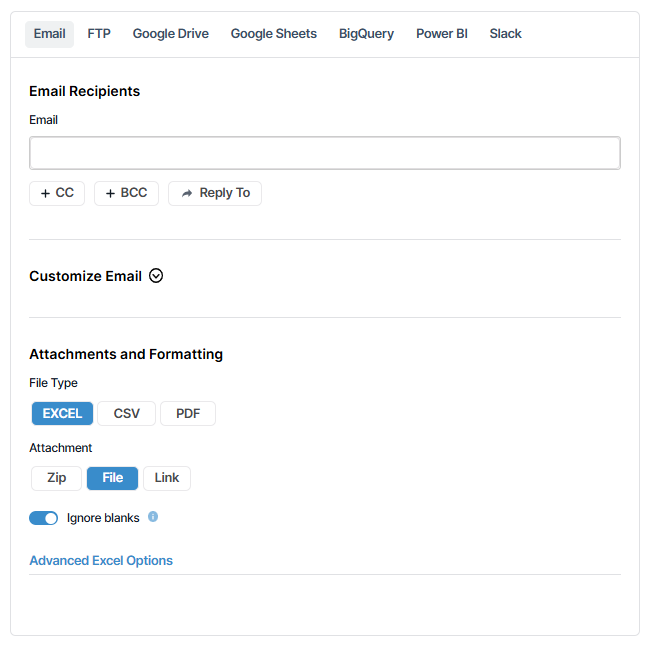
* Choose your preferred output option (for example, view-only, downloadable file, or shareable format).
* **Save the Schedule**
* Click **Save** at the bottom of the page to activate the schedule.
***
#### Notes
* The same process can be used to schedule **newly created reports**.
* You can edit or disable scheduled reports at any time from **schedules.**